Creating Subnets and Tiers
Subnets and tiers are essential components of network design to ensure efficient traffic management and security.
In a VPC, subnets define IP-based network segments, and tiers represent logical layers of your application architecture. You can design networking tiers within this VPC based on the overall network size and the allocated Super CIDR range.

Creating a Subnet and Tier
To create a subnet and tier, follow these steps:
- Navigate to the Networking > Virtual Private clouds > Subnets and Tiers section. The following screen appears:

- Click the Add Tier button. The following screen appears:

- Enter the following details:
- Tier Name: Name of the network tier you are creating.
- Gateway: IP address for the gateway of the tier.
- Netmask: Subnet mask defining the IP range.
- Access Control: Choose rules for network traffic control.
- Click the Add Network Tier button.
You can attach the network tier to the instance as a Network Interface Card (NIC).
Restarting a Network Tier
To restart a network tier, follow these steps:
- Navigate to the Networking > Virtual Private clouds > Subnets and Tiers section. The following screen appears:
- Click on your created VPC name from the list.
- Click the Restart Network (highlighted in red) icon.
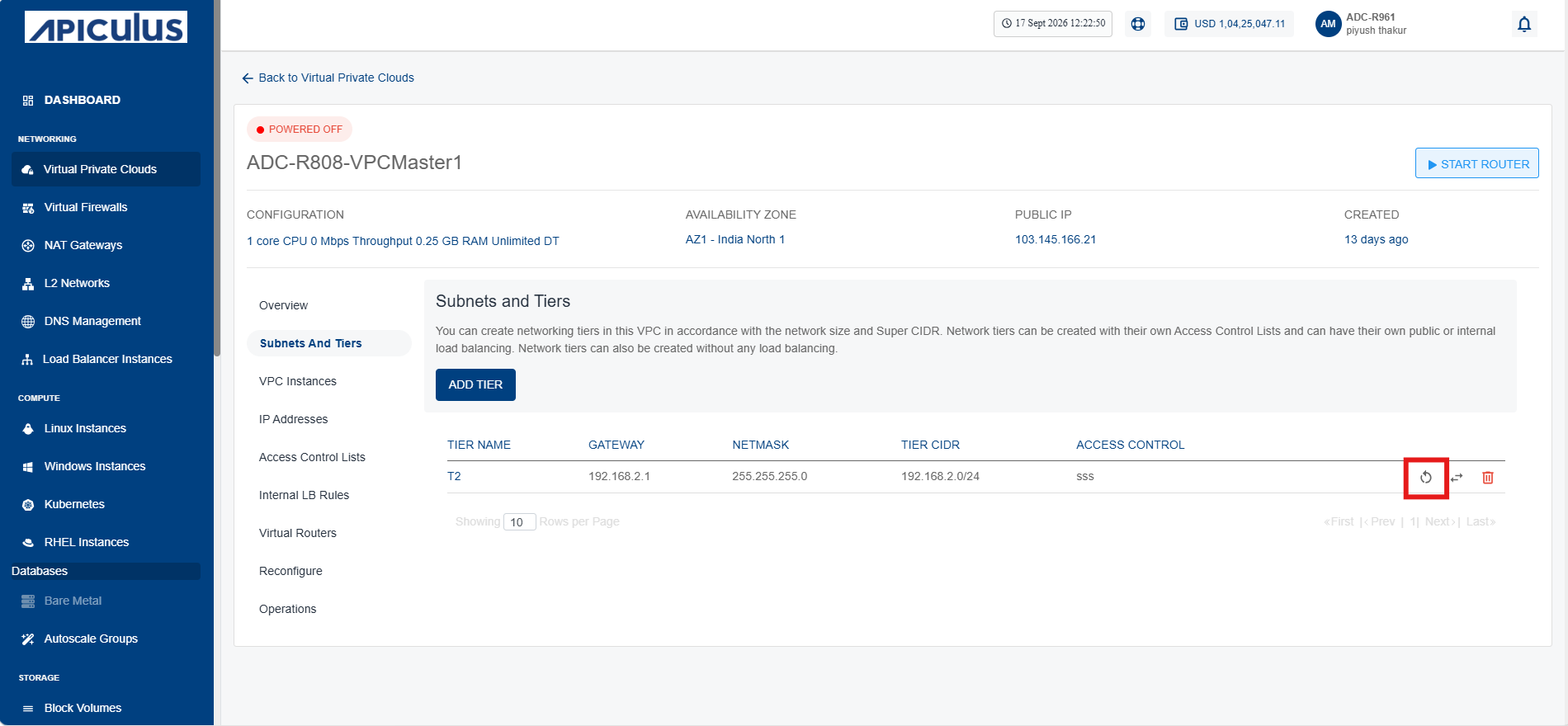 The following screen appears:
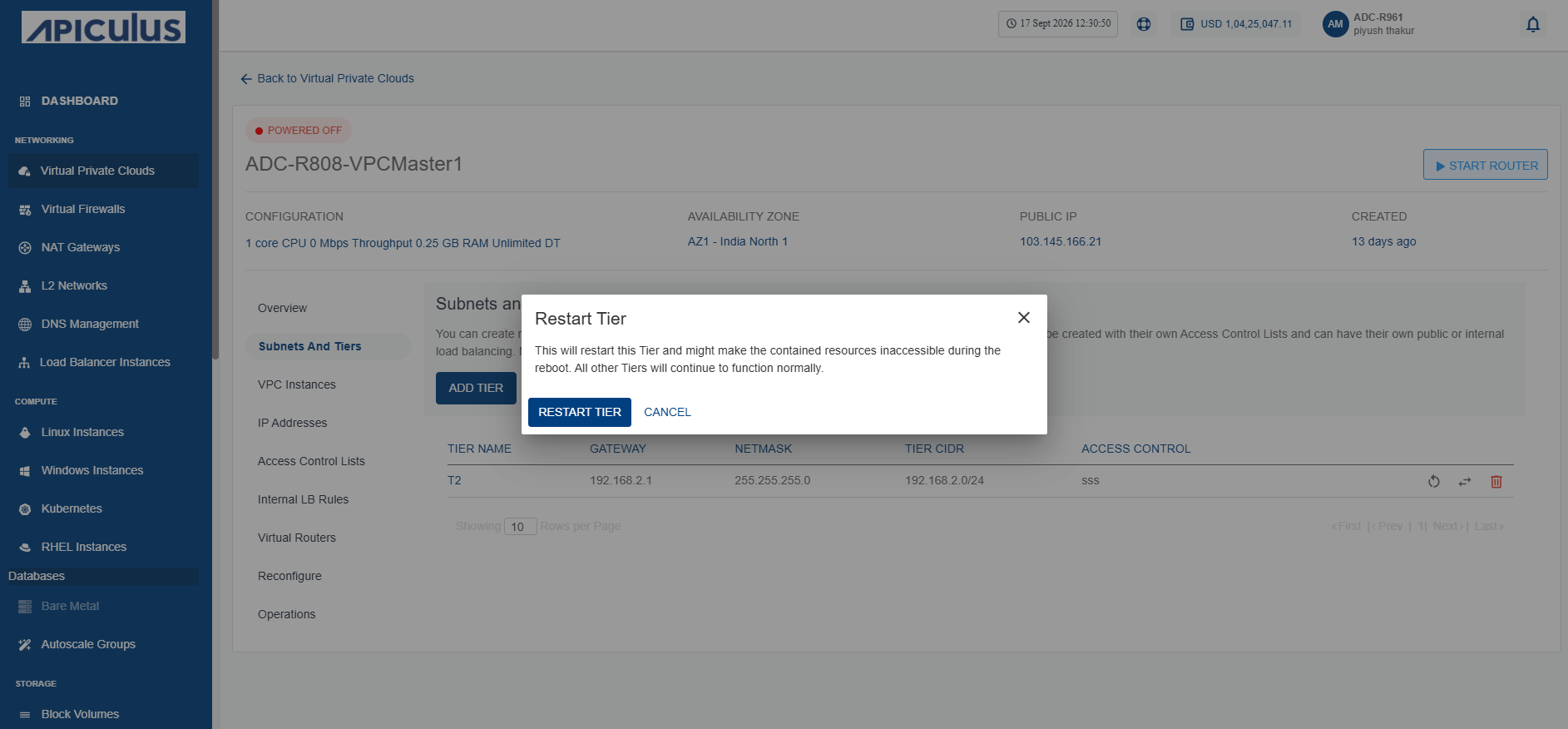
- Click the Restart Tier button.
Replacing an ACL
To replace an ACL, follow these steps:
- Navigate to the Networking > Virtual Private clouds > Subnets and Tiers section. The following screen appears:
- Click on your created VPC name from the list.
- Click the Replace Access Control List (highlighted in red) icon.
 The following screen appears:

- Select a different ACL from the dropdown list.
- Click the Replace Tier ACL button.
The tier is attached with selected ACL.
Deleting a Network Tier
You can delete only the empty tiers, which means that in order to delete a tier, ensure that there are no Instances and no NAT rule(s) associated with it.
To delete a network tier, follow these steps:
- Navigate to the Networking > Virtual Private clouds > Subnets and Tiers section. The following screen appears:
- Click on your created VPC name from the list.
- Click the Delete Network (highlighted in red) icon.
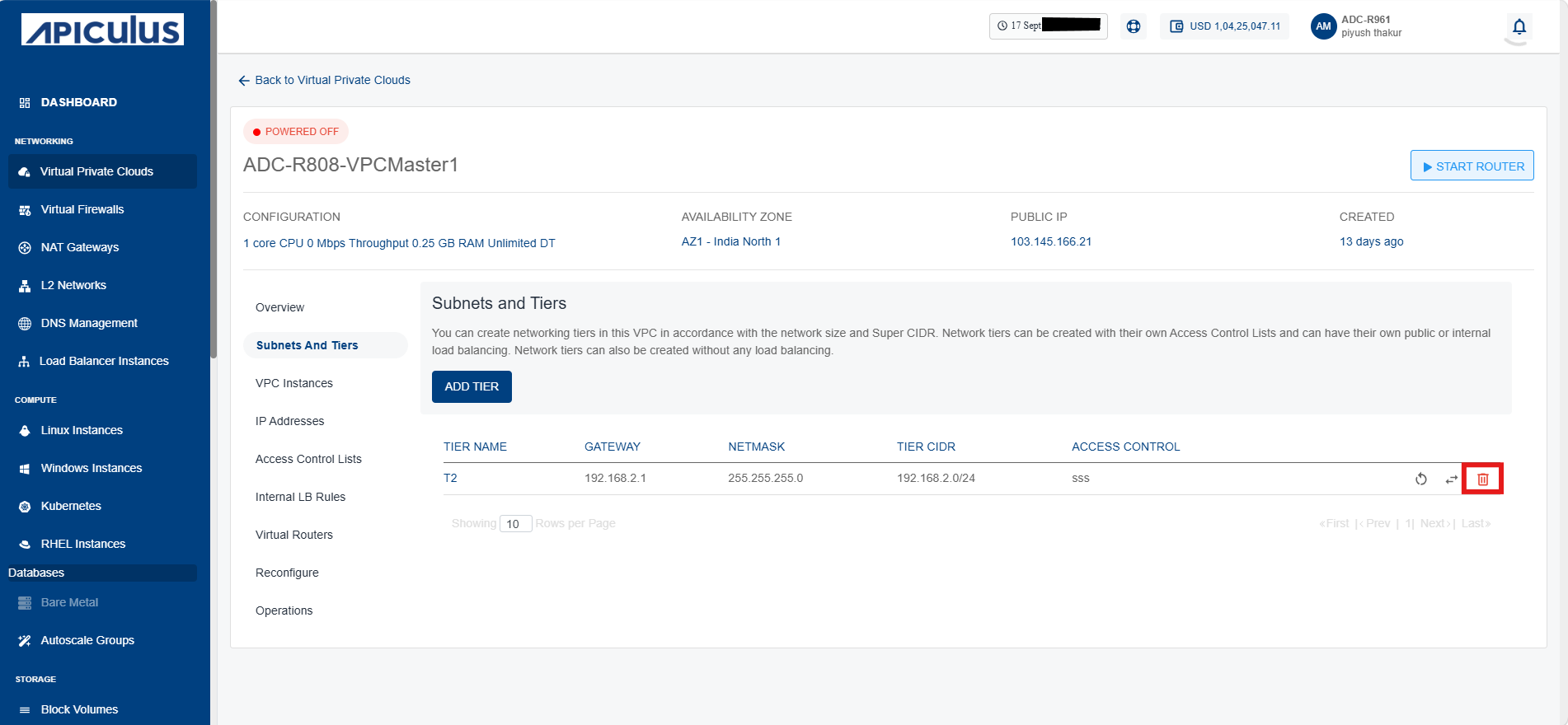 The following screen appears:
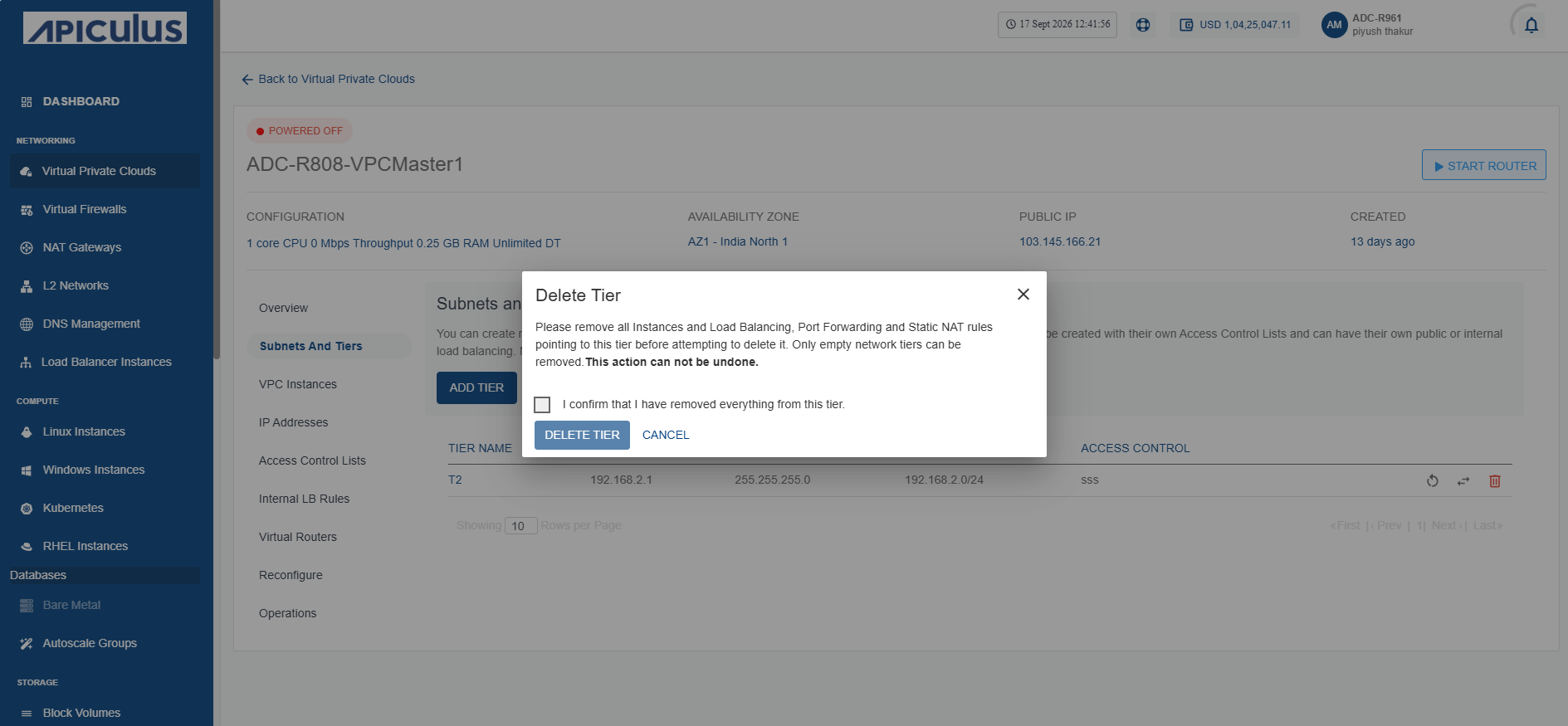
- Click I confirm that I have removed everything from this tier checkbox.
- Click Delete Tier button.